What’s new in Affinity: from light UI to smoother workflows
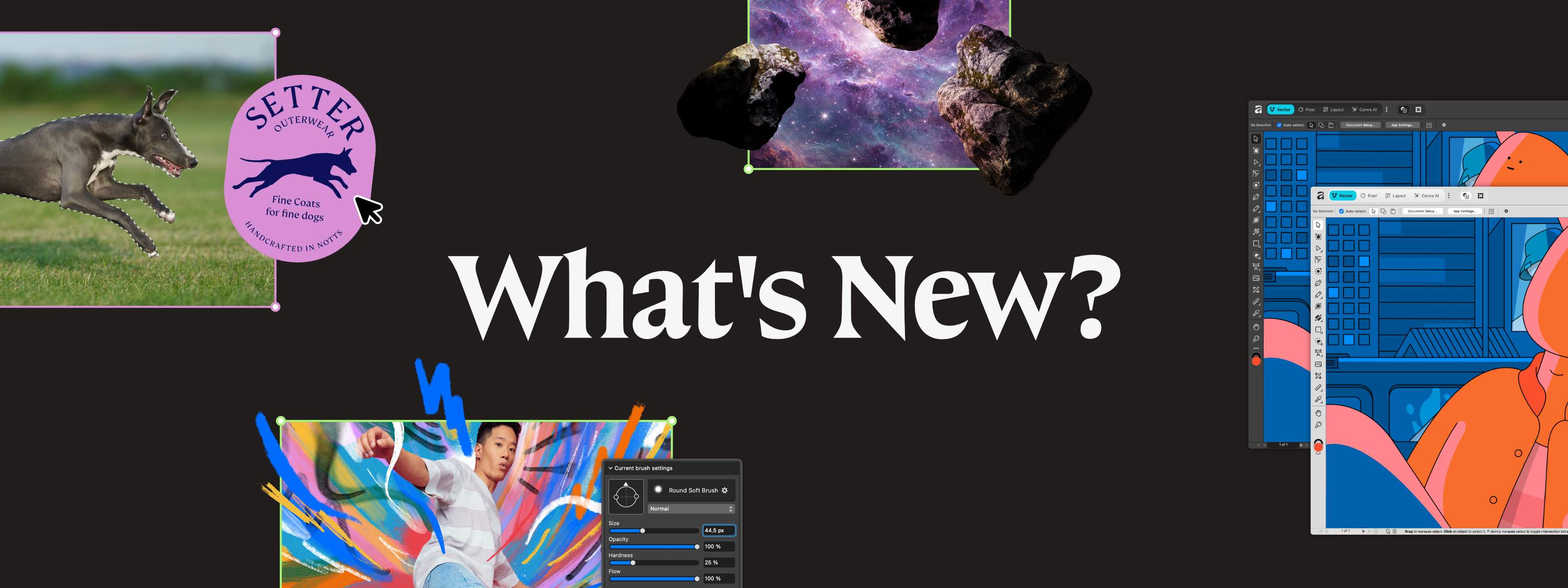
At Affinity, we've always built alongside our community, constantly evolving the app and listening to the creatives who use it every day.
This month is no different, we're delivering long-requested improvements and new craft capabilities that strengthen real creative workflows. From Light UI to Convert to Curves, these updates were shaped by you. Every feature in this release loops back to conversations we've been having with our community.
Here’s what we built.
Work your way with a lighter interface
Light UI has been one of your most requested features for a long time. It's here now, and it's fully yours to customize. Offering a brighter workspace for those who prefer it.
For layout-heavy projects, long studio days, or simply personal preference, Light UI creates a cleaner, more luminous environment to work in. And just like Dark Mode, it’s fully adjustable. You can fine-tune the interface brightness to suit your preference, whether you want something crisp or a little more muted.
Affinity should feel like your space. However you work, and however long you work, the environment should support your focus rather than distract from it. Light UI makes that possible.
Turn pixel selections into clean vector artwork, instantly
This update also introduces a faster way to move from raster to vector. With Convert to Curves in the Vector menu, you can turn a pixel selection into a fully editable vector curve instantly.
For designers and illustrators looking to turn parts of a photo into clean vector artwork, this removes the need for manual tracing. A selected subject can be converted and refined without redrawing every contour. Silhouettes, logo-style graphics, and cut-outs for posters or social media thumbnails can now be created in a fraction of the time.
Used alongside the Object Selection tool, the transition from pixels to vectors feels smooth and uninterrupted, helping you maintain momentum throughout the process.
Blend layers dynamically and non-destructively
Live Tone Blend Groups introduce a new approach to compositing in Affinity. When you place layers inside one of these dynamic groups, they begin blending with the underlying composition in real time, completely non-destructively.
For compositors, digital artists, and image editors, this simplifies the workflow. Instead of manually matching tones with clipped adjustments and channel manipulations, blending becomes a one-click process. And unlike destructive harmonizing tools in other software, Live Tone Blend Groups remain fully editable and render smoothly even in complex documents. Blending settings can be refined at any stage, and individual layers can still be adjusted whenever needed.
Plus so much more
Alongside these features, you’ll find even more refinements shaped directly by your feedback. These aren’t random additions. They’re answers to everyday friction and those “why can’t it just…” moments.
We’re closing the loop for illustrators and digital painters who wanted instant access to their full brush library, with a new right-click brush menu. And for those asking for a simpler way to manage documents, there’s now a right-click menu on document tabs, so you can quickly check Color Format and Size, close other files, float a window, and more in seconds.
With every update in this release, we’re refining, tightening, and smoothing the edges. Making Affinity feel more natural. More powerful. More like home every time you open it.
For an overview of everything included in this release, head to the full release notes.
Ready when you are!
The new features in this update are available now and ready to be explored in your next project. Try Light UI on a layout, convert a photo selection into a vector, or experiment with Live Tone Blend Groups to shape more flexible compositions.
If you’re new to Affinity, you can download it for free and experience a creative workflow built without compromise.
We’ll keep refining the tools so you can keep refining the craft.


