Affinity Essentials Lesson 7: Vector, Pixel & Layout combined workflow
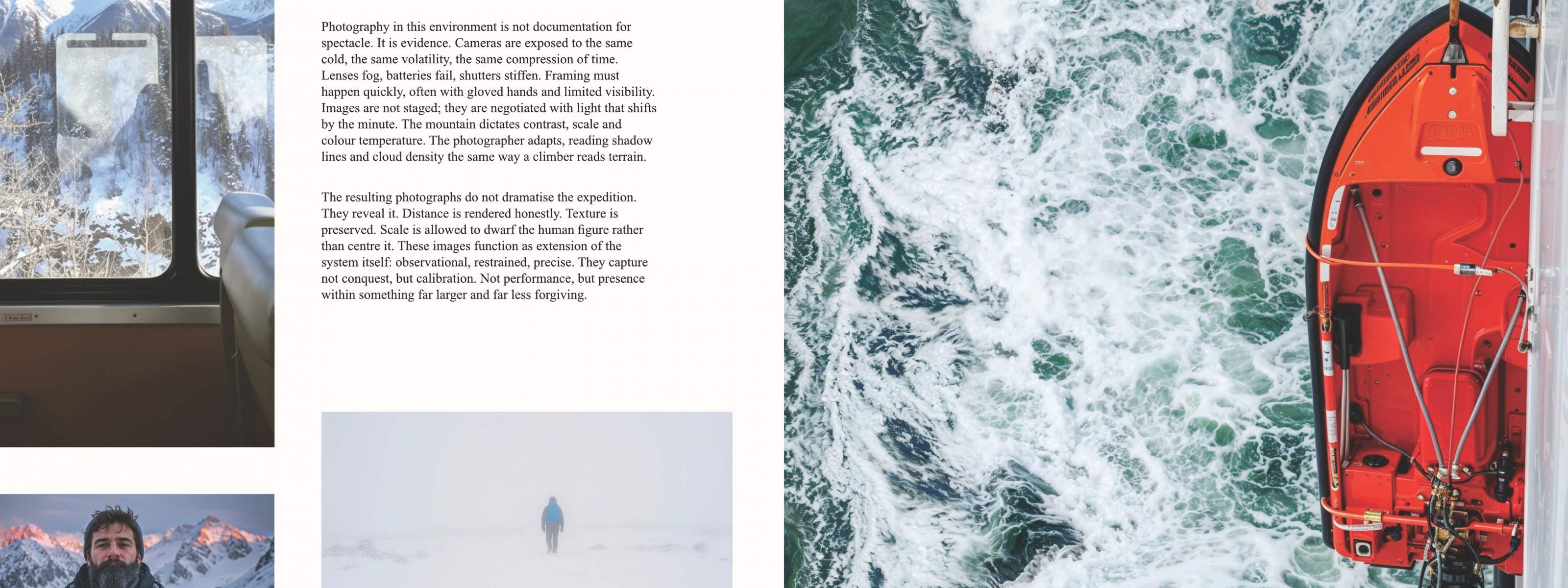
Using pixel, vector & layout tools in one Affinity project
Great ideas don’t stay in one lane — and your workflow shouldn’t either. In this lesson, we’ll show you how to combine vector, pixel, and layout tools in a single Affinity project, demonstrating how seamlessly Affinity’s studios work together.
You’ll start by blending Layout’s image handling with Pixel Studio’s editing tools to make quick, non-destructive adjustments. From there, you’ll use vector curves and advanced text features to create dynamic typography that flows directly along a path. Finally, you’ll pull everything together in a real-world design challenge: building a bold advert for an outdoor adventure brand, combining image editing, typography, and vector elements into one cohesive layout.
Lesson objectives
By the end of the lesson, you’ll be able to:
- combine layout, pixel, and vector tools within one project
- make on-the-fly image edits using adjustments and inpainting
- create text that follows custom vector paths
- integrate typography, imagery, and vector elements into a cohesive design
- approach multi-discipline projects with confidence
Lesson resources
Before you begin, make sure you have downloaded Affinity and are logged in. You’ll also want to download the Lesson 7 source file to follow along.


