More power for your craft: From Blend Tool to faster masking
For anyone who loves obsessing over the details, this release gives you more to obsess over. Spot what’s off in a curve. Build blends that move with the rest of your design. Refine masks and angles without losing the ability to change your mind.
Led by the long-requested Blend Tool, this update lets you shape, inspect, and refine the parts of your work that other tools make needlessly difficult.
Blend Tool: Effortlessly fluid, endlessly editable
You’ve been asking for this one for a long time. So we made sure it was worth the wait.
We’ve worked closely with our Designer Advisory Board and beta community along the way. They’ve tested Blend Tool, told us what worked, what didn’t, and where we could push it further.
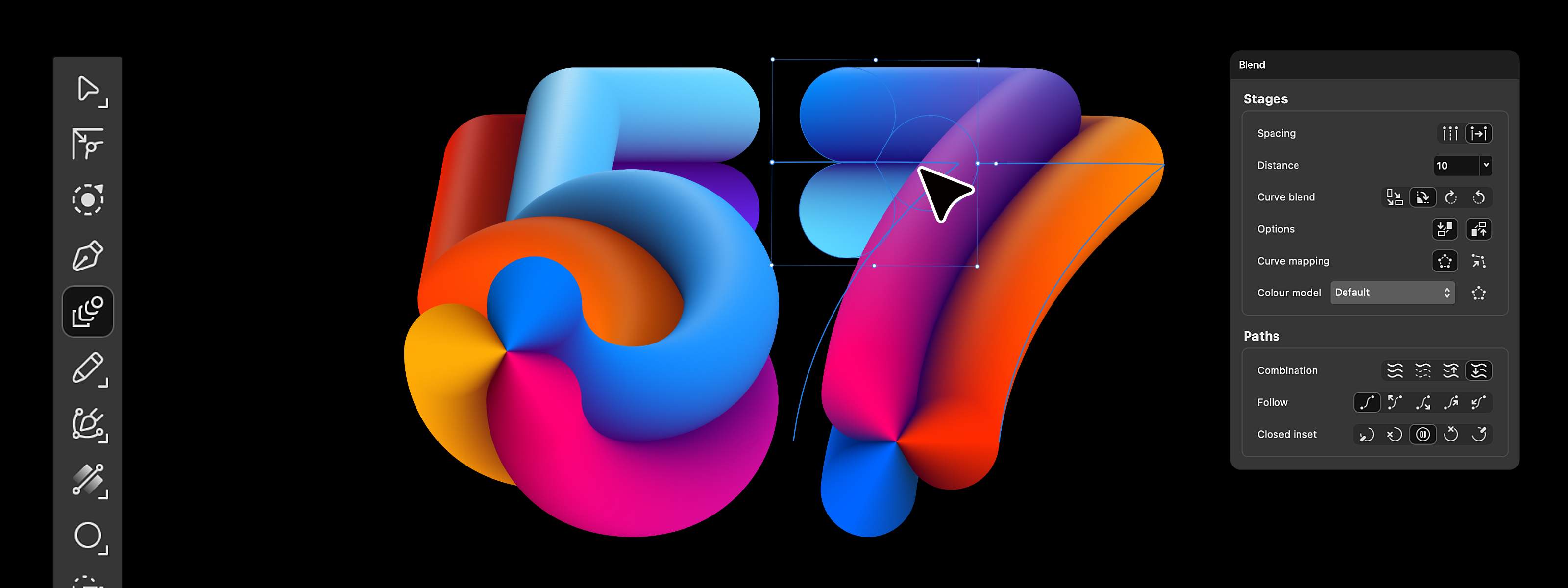
Crafting detailed effects usually requires hours of placing everything by hand, or using a tool that makes you start over every time you want to make a change. Affinity’s Blend Tool turns that painstaking process into something you can sculpt and play with.
Use bias and easing to decide where it bunches up, slows down, or picks up speed. Run elements along a curve and they stay evenly spaced by true distance, rather than stretching to fit the bends.
And you still get to decide exactly how the result takes shape. Affinity works out how your shapes should morph by default, but you can take over and map them point by point when you want to.
Want to push it further? There’s two-path control. Drag a second path across the canvas and watch the blend expand and reflow around it, live. Every change happens right in front of you and stays editable, so you can keep working things out as you go, even if you’re going back.
Mask Tool: Mask and you shall receive
Masking is one of the most common jobs in professional image work, and one of the most fiddly. Create the mask layer, switch to the brush, set hardness, paint, switch again for a gradient, find the right textured brush for a tricky edge. It’s a lot of setup for something you might do a dozen times a day.
The new update lets you mask image edits faster, with one tool that handles everything from sky and person detection to clean edges, textured details, and editable gradients as you paint.
So whether you’re making a quick selection or working around a more complex edge, you can spend less time setting up the mask and more time refining the edit.
G2 curve tools: See exactly what’s making a curve feel off
Every designer knows the feeling. A curve looks subtly off, but you can’t quite see why. Add an anchor, take one out, nudge a handle, look again. Often, it’s a break in curvature: the sharpness changes where two segments meet, and your eye catches a lump or flat spot even though the outline is technically smooth.
G2 curve tools let you see exactly what’s making the curve feel off, then put it right. A curvature comb visualizes how the curve changes along its length, turning bumps and flat spots into something you can actually see and fix. Curvature-aware snapping goes beyond matching the direction of two segments by matching their curvature too, helping them flow together as one continuous form.
No more guessing which handle needs another nudge. You can see where the problem is, refine it with precision, and know your curves are properly smooth before the work ships.
3D model support: Place it, turn it, make it lit
Designers need objects in their work all the time: packaging shown assembled, a product in a hero layout, type sitting convincingly in space. Getting that object into your design can mean switching to a separate 3D app, rendering it there, then bringing a flat image back into your layout. If the composition changes and the angle no longer works, you’re back to the 3D app to do it again.
3D objects can now be freely manipulated in Affinity, so you can adjust lighting, rotation and scale to suit the scene and the overall composition.
You can even create a 3D model from an image, turning a photograph of an object into something you can reposition within your design. So you're no longer stuck with the angle you started with. You can show the object the way the idea needs it, then keep refining it as the design evolves.
Finer control, right down to the details
For the detail-dwellers, the curve perfectionists, and anyone who’ll keep tweaking until it feels exactly right:
You’ve been telling us where you want more control, and we’ve been listening. Blend Tool, Mask Tool, G2 curve tools, and 3D model support give you more ways to shape, inspect, and refine your work, with the freedom to keep changing your mind as you go.
AI that respects your craft
We've only brought in the AI that earns its place. It speeds up the tedious parts and leaves the creative decisions to you. Most of this release is free to use, including all your core photo, vector and layout tools. To use the AI, the Canva AI Studio is unlocked with a Canva premium plan, and you can see its full list of features here.
Plus more to explore
There’s a lot more where that came from, with over 60 new features and improvements across this release. Discover new ways to automate repetitive work, or see what’s new for developing and refining your photography. For a full list of what’s new, check out the release notes.


