Affinity Essentials Lesson 5: Layout Studio
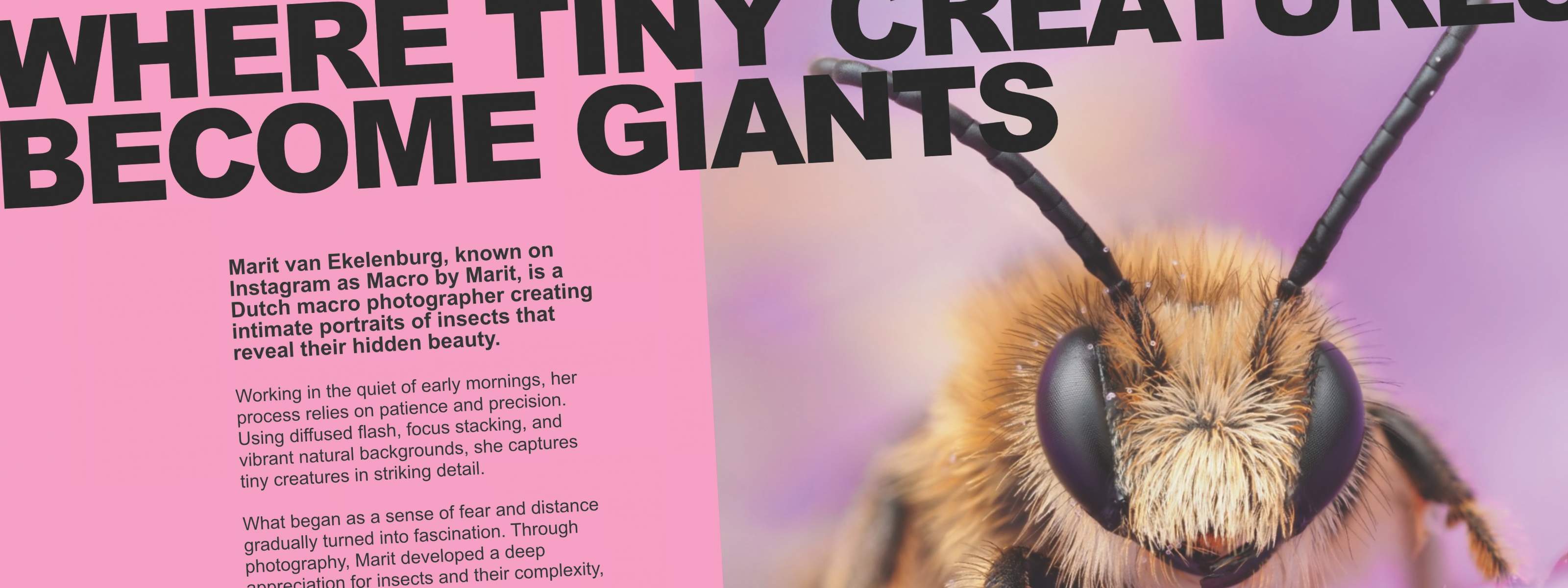
Designing multi-page layouts with Affinity’s Layout Studio
A well-designed layout turns a collection of images into something unforgettable. In this lesson, we’ll show you how to create a professional photobook in Affinity, using striking insect photography by Marit Van Ekelenburg as your foundation.
You’ll begin by setting up your document and building master pages to keep everything consistent. From there, you’ll create guides to structure each spread, map out your pages using picture and text frames, and place imagery and copy with intention. Finally, you’ll prepare the file for professional print export.
Lesson objectives
By the end of the lesson, you’ll be able to:
- set up a document for print
- create and apply master pages
- use guides to build clean, consistent spreads
- place and arrange images using picture frames
- add and format text within your pages
- export a print-ready document
Lesson resources
Before you begin, make sure you’ve downloaded Affinity and logged in using your Canva ID. You’ll also want to download the Lesson 5 source file to follow along.


